
Wedge
Wedge types IDs and measurements from a reader, scale, or scanner into whichever field is active. Keep using your current form, spreadsheet, or LIMS without retyping each reading.
- Windows Software
- Readers, Scales & Scanners
- No Retyping

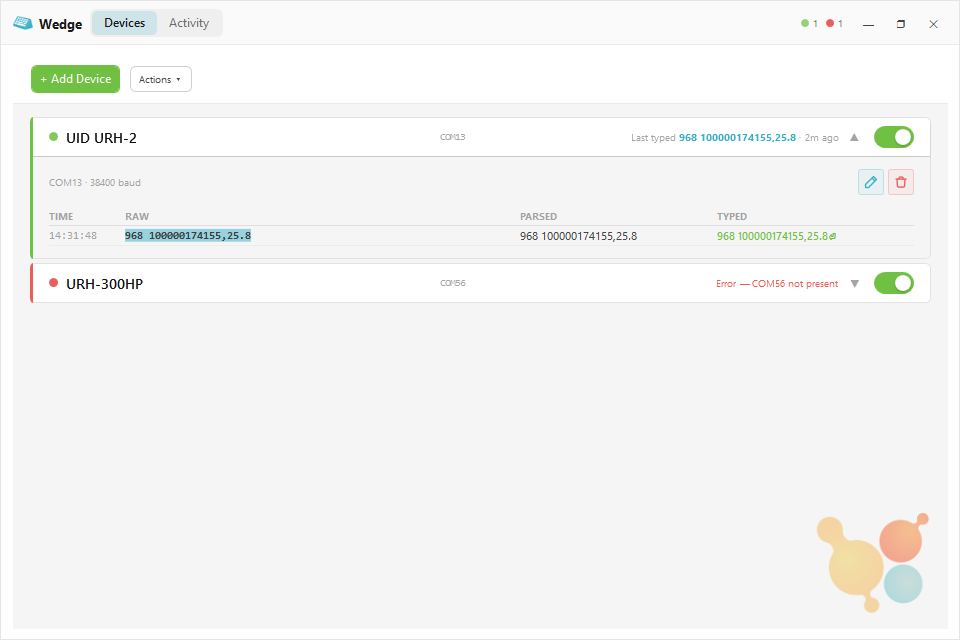
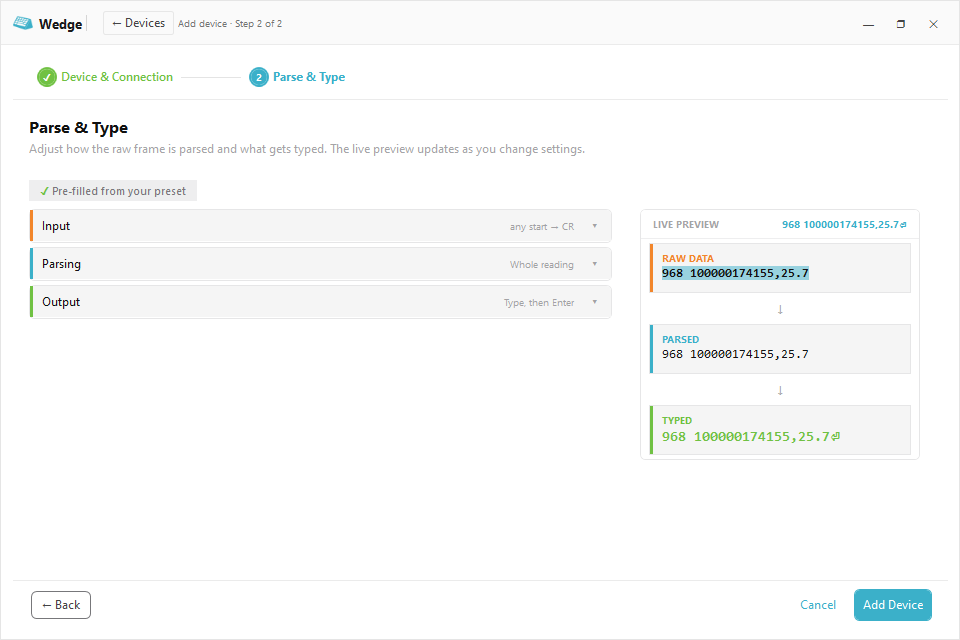
Set It Up and See the Result
Add a device, take a sample reading, and confirm what Wedge will enter before saving the setup.
- Choose your device. Start with a setup for a UID reader, Bluetooth adapter, scale, or scanner.
- See the final entry. Compare the device reading with what Wedge will enter.
- Test it first. Send a sample to the field you choose before you start working.
- Reuse the setup. Save a working setup and use it on another computer.
Stop Retyping Device Readings
Wedge moves each ID or measurement into the software you already use, saving time and reducing entry mistakes.
- Use Your Current Software Send readings to a form, spreadsheet, or LIMS without replacing the software your team already uses.
- No Manual Entry Wedge enters each value directly from the device, so your team doesn't have to retype it.
- Cleaner Data Keep only the ID or measurement you need and remove extra device text.
- Excel Ready Use Tab or Enter after each reading to move through a spreadsheet.
- Multiple Devices Save a separate setup for each reader, scale, or scanner on the computer.
- Easy to Check See the last value entered and a clear message when a device needs attention.
See Wedge in Action
Use the arrows to see how Wedge connects a device, previews a reading, and prepares it for your software.
-
Devices: See each connection and the last value entered.
Send Only What You Need
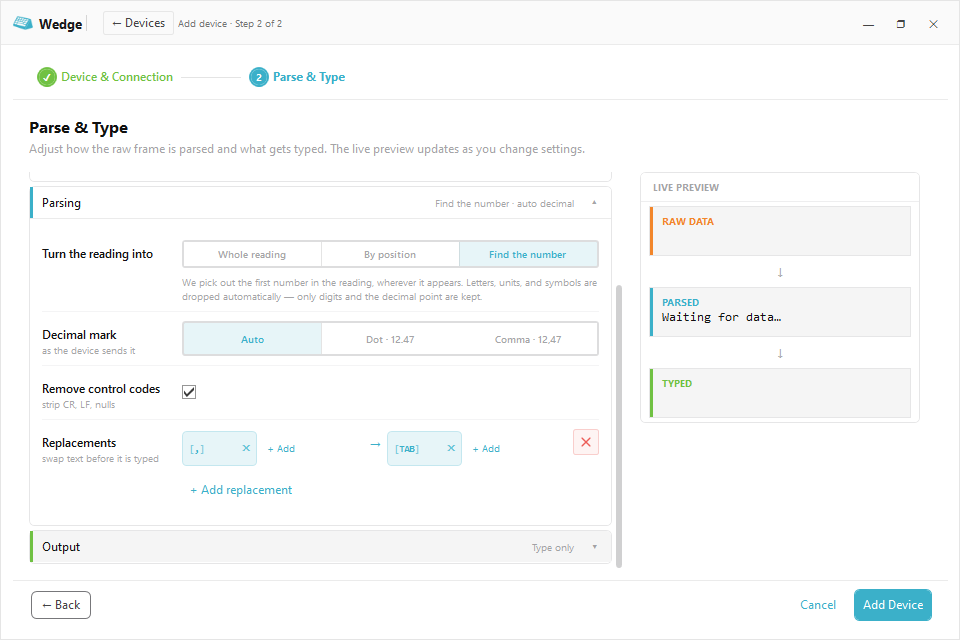
Different devices send data in different ways. Wedge cleans up each reading before it reaches your software.
- Choose the value — keep the full reading, choose a set of characters, or use only the number.
- Remove extra text — leave out device codes and symbols your software does not need.
- Match number formats — use a period or comma for decimals.
- Fill spreadsheet cells — replace commas with Tab and finish with Enter.
From Device to Record in Four Steps
Set up each device once, then use it as usual.
-
Connect the Device
Connect your reader, scale, or scanner, then select it in Wedge.
-
Preview a Reading
Take a sample reading so you can see what the device sends.
-
Choose What Enters
Keep the part you need and choose whether Wedge finishes with Tab or Enter.
-
Start Working
Place the cursor in the field you want to fill. Wedge types each new reading into whichever field is active.
Wedge or DataCollector?
Choose Wedge when each reading should go into an open field. Choose DataCollector when you want to record a collection session in CSV files.
| Feature | Current product: Wedge Windows · Direct entry | DataCollector Windows · CSV files |
|---|---|---|
| Best for | Entering IDs and measurements as you work | Recording many readings over time |
| Where data goes | An open form, spreadsheet, or LIMS | CSV files on your computer |
| How it works | Types each reading into the selected field | Records readings during a collection session |
| Works with | Readers, scales, and scanners | Supported UID readers |
Specifications
You'll Likely Also Need
-
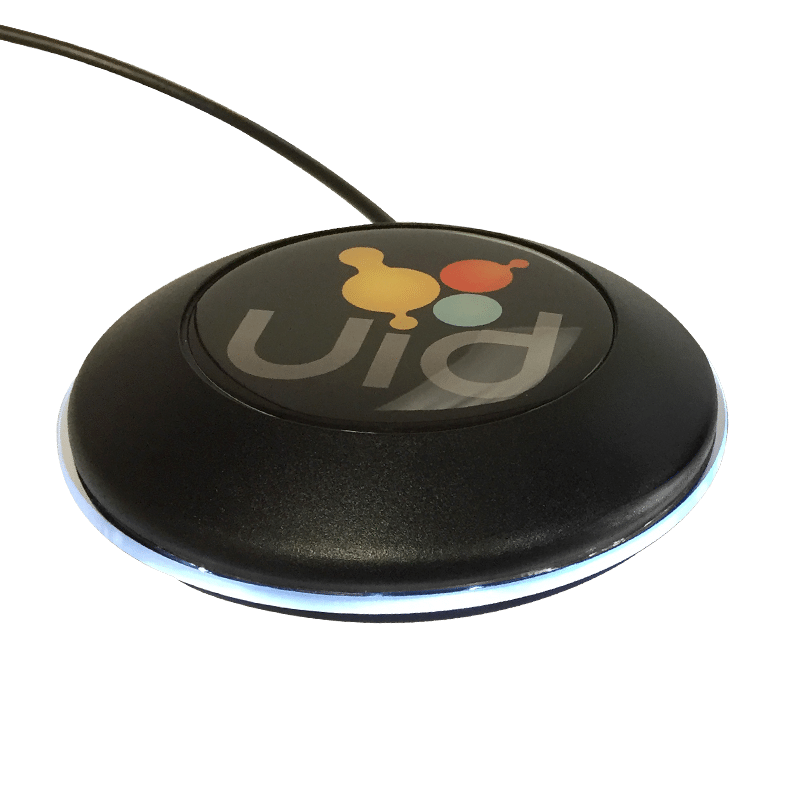 Desktop reader
UDT-100L
- Low Frequency
- Desktop
- 3–4 cm range
A low-cost desktop reader for laboratory animal identification. Sits at the workstation and leaves both hands free, with a white light ring to confirm an animal was read.
View UDT-100L -
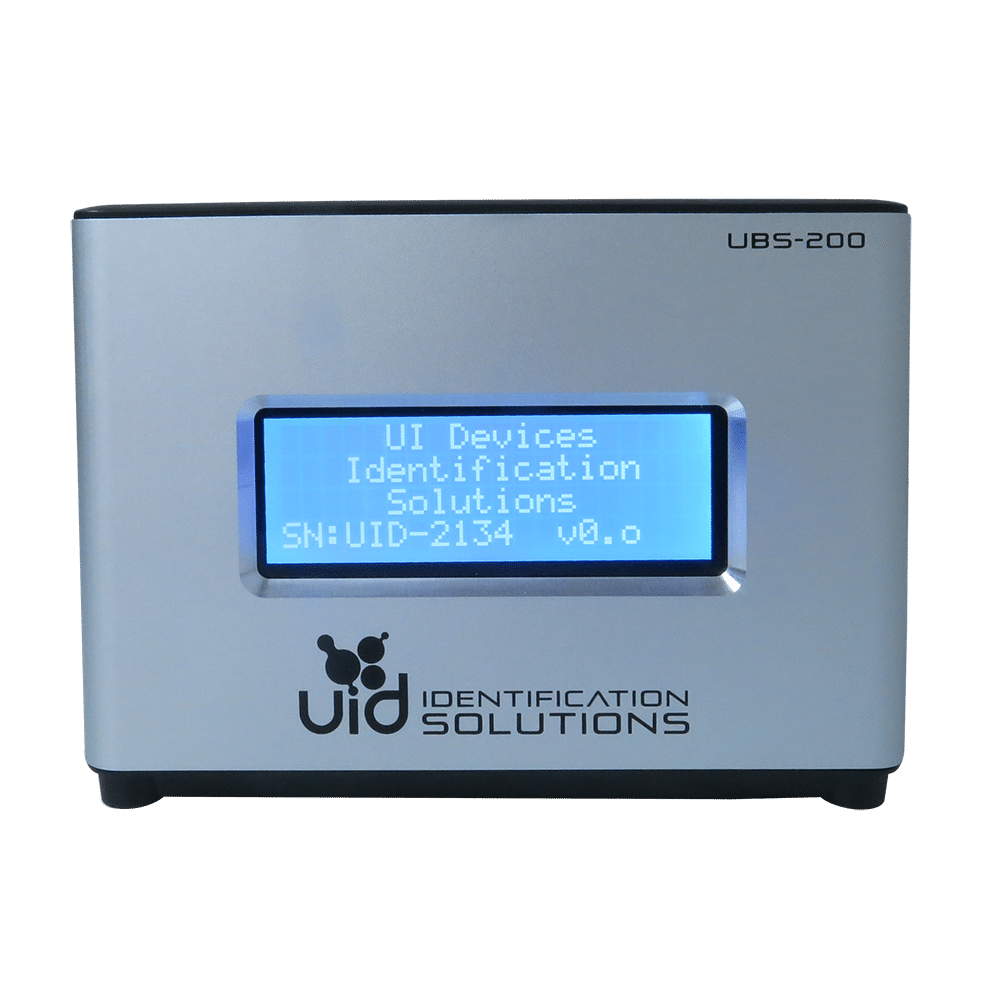 Base Station
UBS-200L Base Station Reader
- 4–8 cm range
- Provisioning
High-powered base station reader that also programs microchips via the PiSuite Provisioning Software. 4–8 cm read range and two switchable antenna ports.
View UBS-200L -
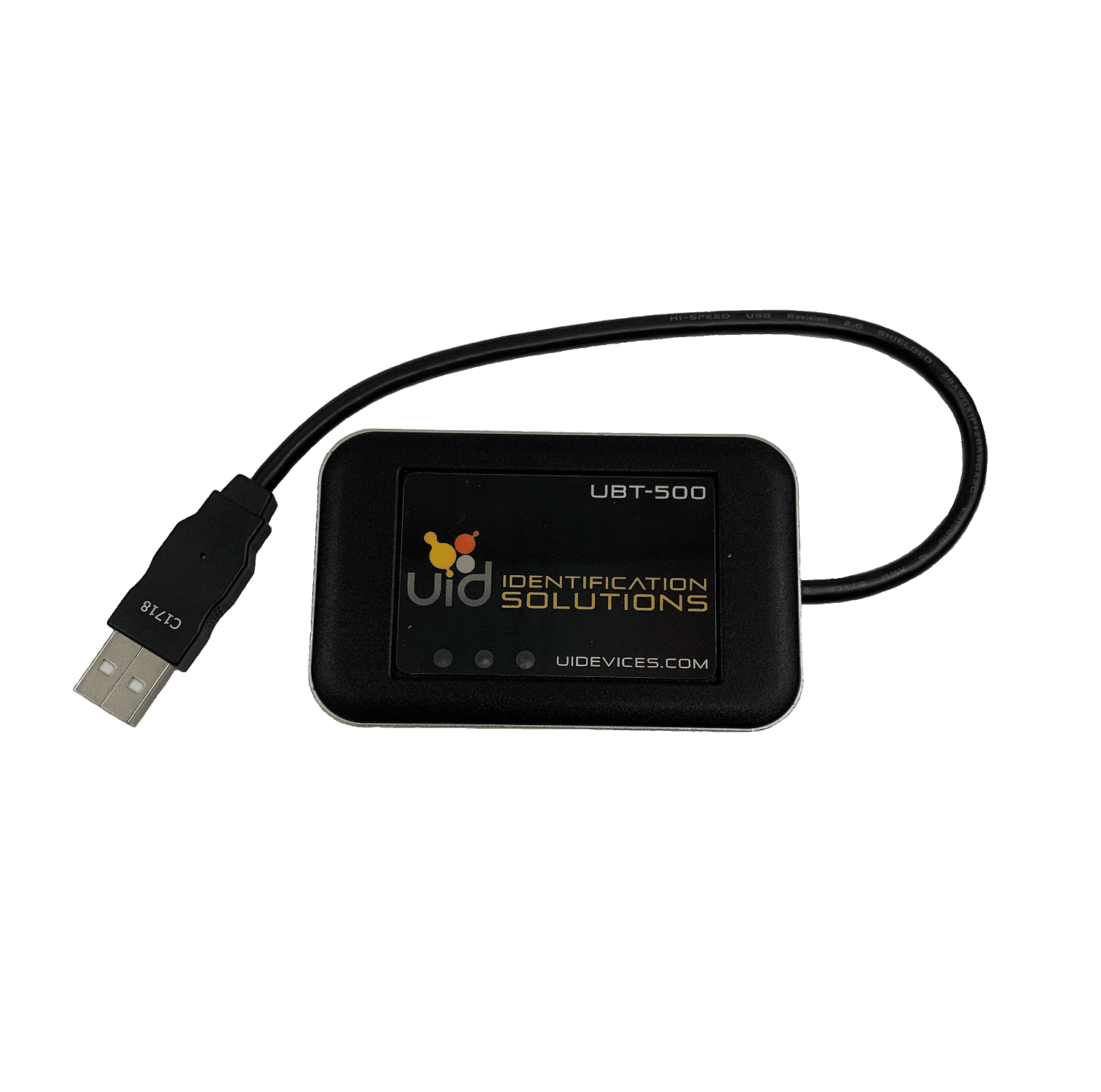 Reader Accessory
UBT-500 Bluetooth Dongle
- Bluetooth
- Wireless Data
Bluetooth adapter for the URH-1, URH-1HP, and URH-300HP handheld readers. It sends readings wirelessly to a PC.
View UBT-500
Common Questions
-
Will Wedge work with our software?
Wedge works with software that accepts keyboard entry. This includes many forms, spreadsheets, and LIMS platforms. Tell us which software you use and we'll confirm it before you buy.
-
Does Wedge work with Excel?
Yes. Wedge can use Tab and Enter to move through cells and rows. It can also replace commas with Tabs when one reading needs to fill several columns.
-
Will Wedge work with our device?
Wedge works with many readers, scales, and scanners, including compatible USB and Bluetooth setups. Send us the model number, and we'll confirm compatibility.
-
Can one computer use more than one device?
Yes. Wedge can save an unlimited number of device setups and manage multiple connected devices from one app.
-
Do we need Wedge or DataCollector?
Choose Wedge when each reading should go straight into an open field. Choose DataCollector when you want to record a collection session in CSV files.
-
How do we buy Wedge?
Contact UID for current licensing and pricing. Tell us how many Windows computers you need, and we'll recommend the right setup and provide a quote.
Ready to Stop Retyping Device Readings?
Tell us which device and software you use. We'll confirm compatibility and show you the right setup.