
Choosing Veterinary Controlled Drug Log Software
Follow one transaction from the cabinet to the report. Compare how each approach records the amount used, identifies the staff member and patient, and helps your team reconcile inventory.
What Should a Veterinary Electronic Drug Log Do?
Veterinary controlled drug log software keeps a digital record of controlled-substance activity. The useful buying question is how the record gets there: who enters it, how the amount is established, and what your team can review afterward.
A digital log may still rely on someone typing a syringe reading. A cabinet-based system can connect the record to staff access, the identified container, and a measured change in its contents.
Regardless of your electronic solution, your practice remains solely responsible for its records, physical inventories, storage, and procedures. Evaluate a product against your own requirements; software alone does not establish compliance.
Compare Drug Logging and Dispensing Options
Paper logs, basic electronic logbooks, automated dispensaries, and CSI-360 collect information in different ways. These are typical differences; electronic logbook and dispensary features vary by product.
| Daily use | Paper Log Handwritten entries | Electronic Logbook Digital entries and reports | Automated Dispensary Controlled drawers and inventory | CSI-360 Cabinet, scale, and software |
|---|---|---|---|---|
| Recording a dose | Write the patient, drug, amount, time, and initials | Enter the transaction in the software | Select the patient, medication, and quantity at the cabinet | Scan and weigh the container; select the patient at check-in |
| Amount used | Read from the syringe and write it down | Staff enter the quantity | Staff enter or confirm the quantity dispensed | Calculated automatically from the container's weight change |
| Access to medication | Keys and cabinet access managed separately | Software login; storage usually managed separately | User sign-in opens the selected drawer or compartment | Personal RFID sign-in and PIN control the cabinet lock |
| Patient records and billing | Copy patient details; bill separately | Patient entry or PIMS integration, depending on software | Patient lookup and charge capture on supported systems | PIMS patient lookup; no charge capture or write-backs |
| Reconciling inventory | Add entries and compare the balance with physical stock | Software calculates the balance from entered amounts | Inventory updates from recorded dispenses | Weighed use updates the item record and amount remaining |
| Installation | Logbook and suitable secure storage | Computer, software, and separate secure storage | Dedicated cabinet with configured drawers or compartments | Retrofit a suitable cabinet, safe, fridge, or freezer, or fit new storage |
| Main tradeoff | Simple to start; every entry and balance check takes staff time | Easier searching and reporting; still depends on accurate entries | Item-level access and billing options; dedicated hardware and setup | Automatic amount measurement; staff must scan and weigh at checkout and return |
Try the Tasks Your Team Does Every Day
-
Record a Routine Dose
Have a technician sign in, take out a bottle, and return it. Count the fields they type and the steps needed to finish the record.
-
Check the Amount Used
Ask the provider to show where the recorded quantity comes from. For CSI-360, watch the before-and-after weights produce the amount removed from the bottle.
-
Investigate a Short Bottle
Choose a bottle whose contents do not match the log. Find its transactions, the staff involved, and the information available to investigate the difference.
-
Correct an Entry
Try correcting the wrong patient or an incorrect amount. Check who has permission and whether the original entry and correction remain visible.
-
Check the PIMS Connection
Select a patient and follow the transaction. Does it only save in the drug log, or does it also post a charge? CSI-360 reads patients from the PIMS and keeps the dispense in CSI-360.
-
Price the Complete Installation
Ask for hardware, installation, licensing, training, and ongoing support in the quote. Include every cabinet and location you plan to use.
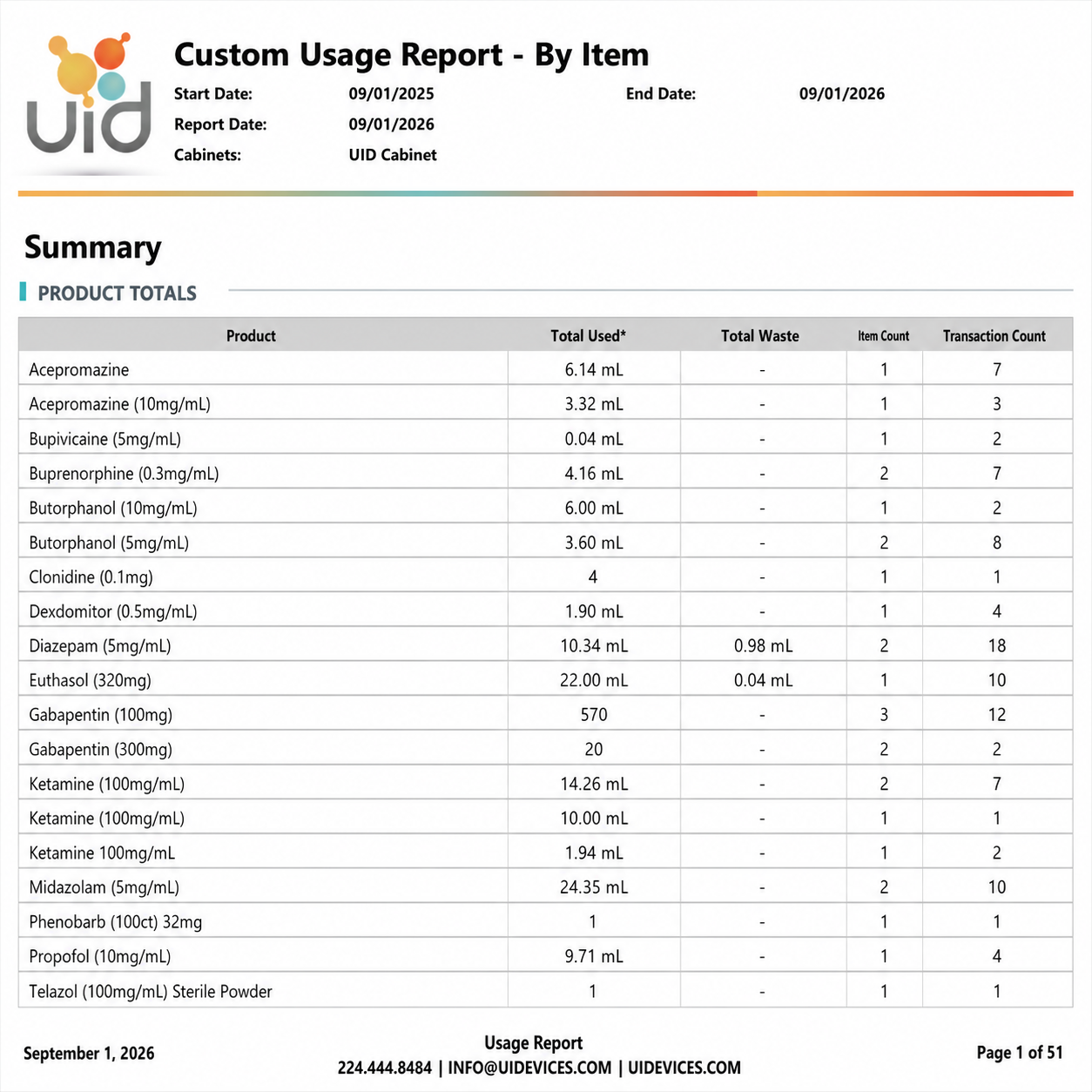
An example CSI-360 report. Confirm the fields and filters needed for your practice.
Ask to See the Record Behind the Report
Bring a representative workflow to the demo and follow it from staff sign-in through review. CSI-360 records the user, patient, item, amount, notes, and timestamp, with reports for inventory, activity, and cabinet access.
- Start with an item: Can your team review what happened to that container?
- Start with a patient: Can you find the associated recorded use?
- Start with a date range: Can you produce the report your practice needs?
CSI-360 offers built-in and customizable reports with PDF, Excel, CSV, and HTML exports. Review the fields and filters that matter to your team using the CSI-360 product details.
Plan the Move from Your Current Log
A useful rollout plan accounts for the people and records around the software. Agree on the details with your team and the provider.
-
Map the Current Workflow
List the storage locations, staff roles, items, records, and systems involved. Identify where retyping or delayed entries occur.
-
Agree on the Record Transition
Confirm how existing records will remain accessible, how starting inventory will be established, and who owns each step. Ask about supported imports instead of assuming they are included.
-
Review a Representative Case
Walk through patient selection, normal use, review, and your required exception handling. Include the staff who use the cabinet and those who reconcile the records.
-
Confirm the Ongoing Process
Set responsibilities for training, support, inventory review, and access changes. Keep the process aligned with your practice's procedures.
Controlled Drug Log Software Questions
-
Is CSI-360 a software-only electronic drug log?
CSI-360 combines an electronic lock, RFID identification, a digital scale, and software at the cabinet. Evaluate it as a connected inventory and access system, including the storage and installation options your practice needs.
-
Does electronic logging remove the need to reconcile inventory?
Your team still needs to review recorded activity and compare it with physical stock. A current electronic record can make that review easier by keeping relevant activity and reports together.
-
Can we keep our existing cabinet?
CSI-360 can retrofit most suitable cabinets, safes, refrigerators, and freezers. UID confirms the make and model before quoting. New storage can also be supplied with the system.
-
Does PIMS integration mean automatic charge capture?
The current CSI-360 connection reads patients for selection at the cabinet. Review additional data-flow requirements separately. The PIMS integration guide explains the supported workflow.
-
Will this software make our practice DEA compliant?
Compliance depends on your practice, storage, records, and procedures. CSI-360 supports controlled access, measured transactions, and reporting. Review the DEA audit-readiness guide with the person responsible for your controlled-substance program.
Explore the Complete Workflow
-
PIMS Integrations
See how patient lookup from Shepherd, Vetspire, and Digitail connects to the cabinet record.
-
Cabinet and Inventory Management
Explore access, measured transactions, retrofit options, and practice-specific configurations.
-
DEA Audit Readiness
Review recordkeeping topics and the responsibilities that remain with your practice.
Bring Your Drug-Log Questions to a Demo
Show us how your team records and reviews controlled-substance use. We'll walk through the CSI-360 workflow and discuss the fit.